Enquiry Now


 Contact Us



 Check Out
 +44 20 4571 2395

 PRINCE2® Foundation and Practitioner Training



 Aaron Charlie
 6 May 2011
InDesign Training Tutorial: Creating Templates in InDesign CS5
One of the things we're most commonly asked on our InDesign Training courses is how to improve workflow and save time using InDesign. One of the best ways to do this is to create and use InDesign Templates. This is especially useful if you're creating very similar InDesign documents over and over, and don't want to have to start from scratch each time.
In this simple InDesign training tutorial, we show you how to create InDesign Templates using InDesign CS5.
If you need really comprehensive tuition on using InDesign

CS5, we run regular InDesign training courses. We also run regular Photoshop Training, Illustrator Training and Flash Training courses.
InDesign CS5 Tutorial: Using InDesign Templates
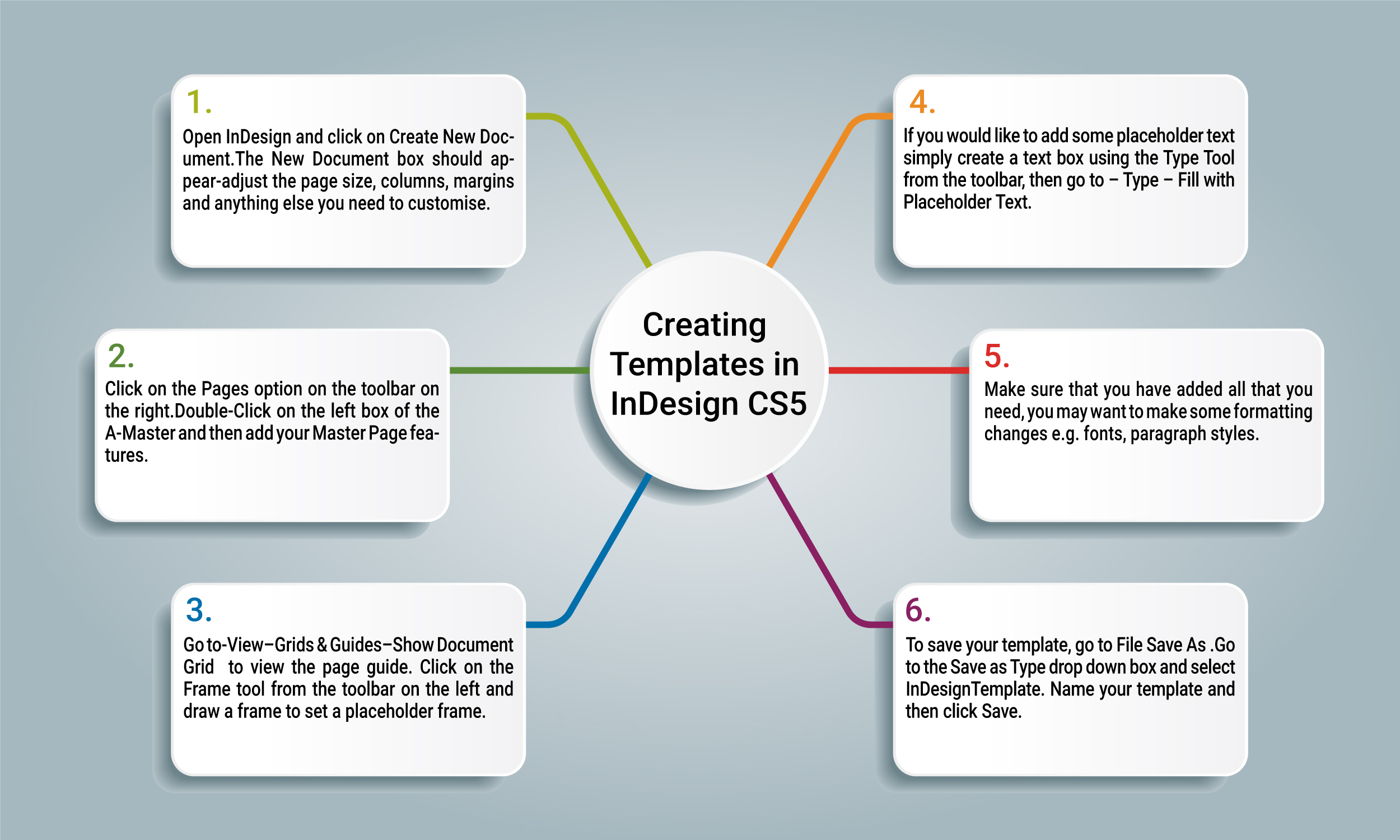
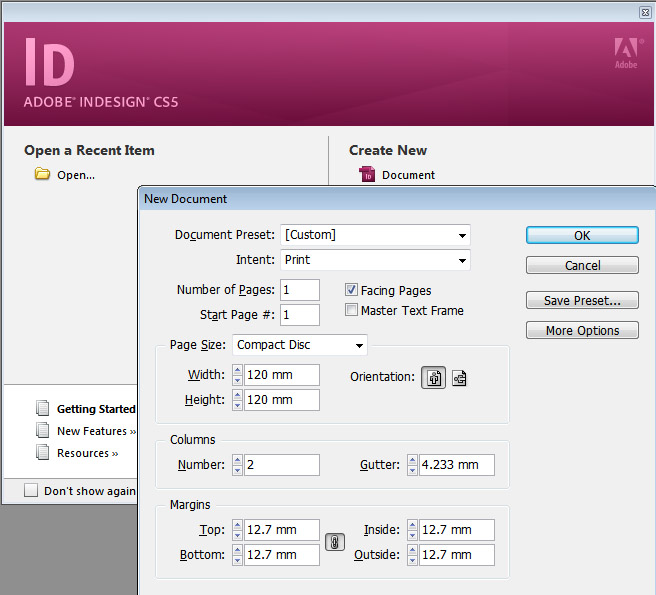
1.Open InDesign and click on Create New Document. The New Document box should appear- adjust the page size, columns, margins and anything else you need to customise. Click OK.
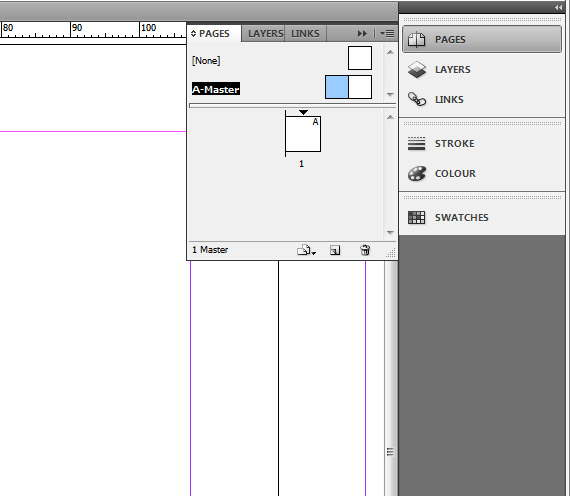
2.Click on the Pages option on the toolbar on the right.Double-Click on the left box of
the A-Master and then add your Master Page features.
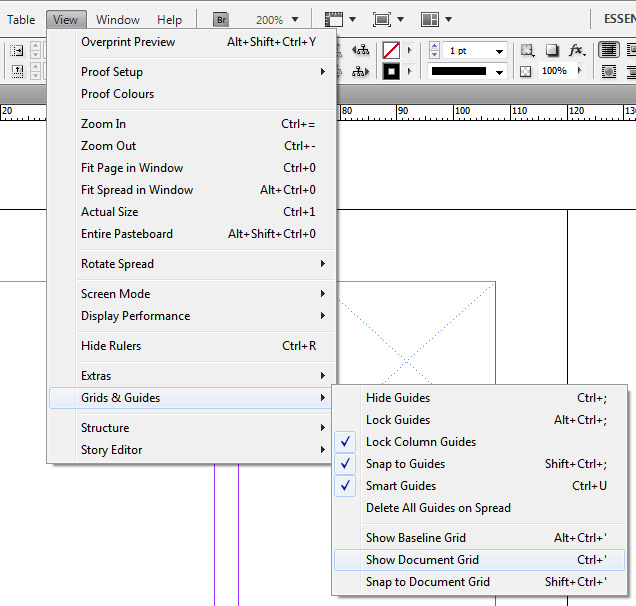
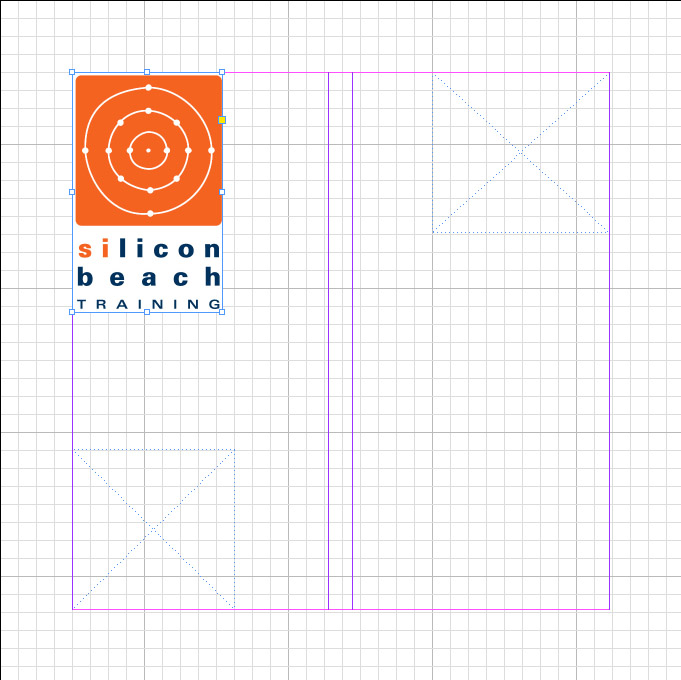
3.Create your guides, grids or placeholder frames. Drag the guides from the rulers. Go to - View – Grids & Guides – Show Document Grid (or CTRL + ‘) to view the page guide. Click on the Frame tool from the toolbar on the left and draw a frame to set a placeholder frame.
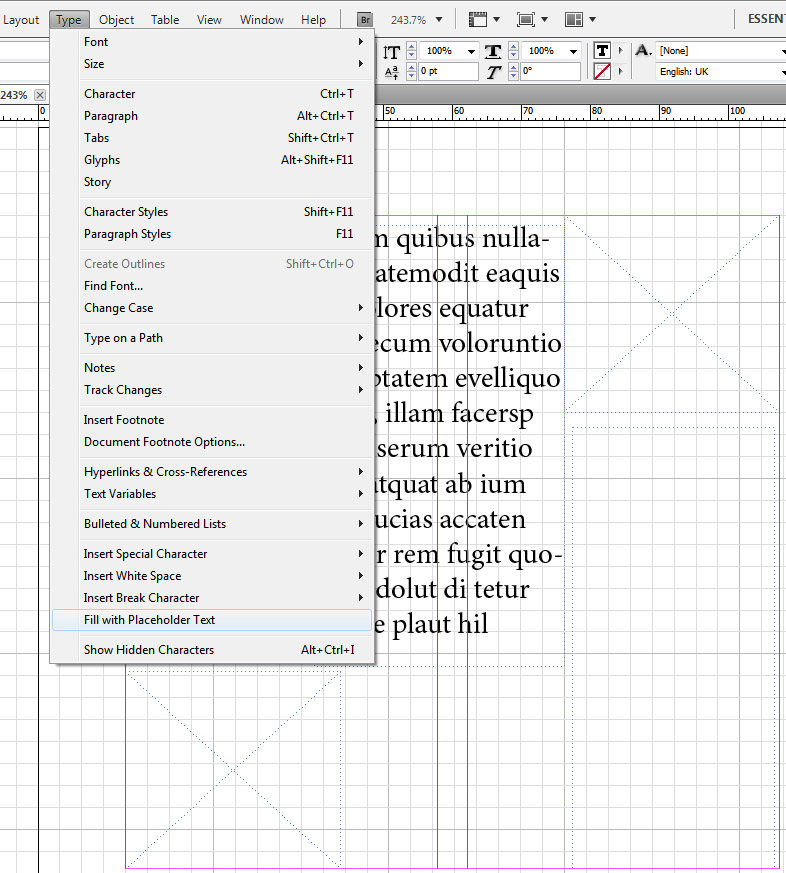
4.If you want to add your own images to the template go to – File – Place and then find your image and click OK. If you would like to add some placeholder text simply create a text box using the Type Tool from the toolbar, then go to – Type – Fill with Placeholder Text.
5.Make sure that you have added all that you need, you may want to make some formatting changes e.g. fonts, paragraph styles, text wraps etc. Once you are happy with your final document, you are ready to save it as a template.
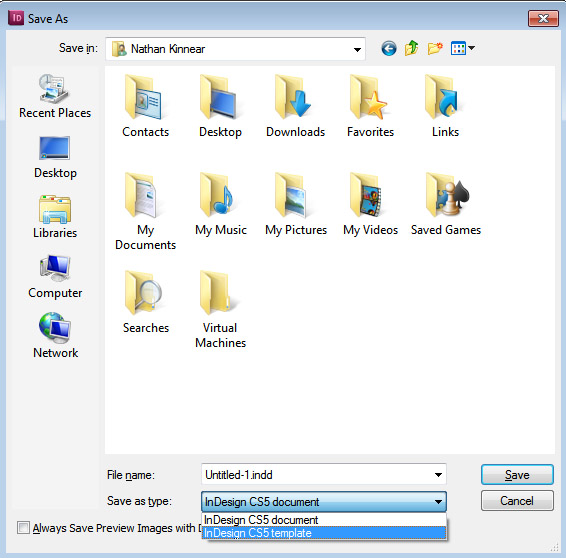
6.To save your template, go to – File – Save As (SHIFT + CTRL + S). Go to the Save as Type drop down box and select – InDesign (your version) Template. Name your template and then click Save.
Posted under:
 Need Any Help?
Recent Blogs