How to Customise Your Google+ Profile Page

How to Customise Your Google+ Profile Page: Tiled Images

Check out our gallery of the most creative Google+ Profile designs – and vote for your favourite!

adobe photoshop training

Download Template

Step 1:

Download and unzip our Photoshop Template

Step 2:

Open up the template in Photoshop. We’ve left the images of my face in the template so you can see how it all works – but if you don’t want to see my face (and I can sympathise with your position if you don’t) then either hide or delete the “Colin” Layers!

Next you’ll want to import the image (or images) that you want to use in your own profile.

To do this, select File > Place and select your image file.

Drag and resize it so its in the correct position, and hit enter to place it:
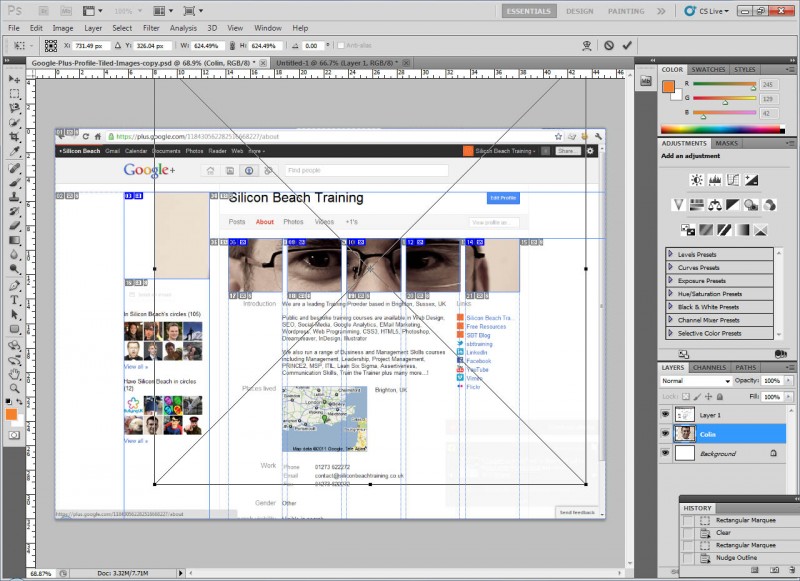
pimp-google-plus-profile-tiled-images-1

Click on the image for full size version

The image you’ve placed should be in its own layer beneath the “Layer 1″ layer – if it’s not, just drag it there in the layers panel so that it looks like this:
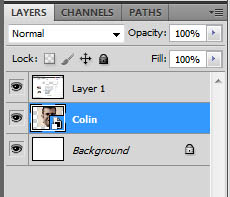
pimp-google-plus-profile-tiled-images-2

Now you can move your image around under the template to see how it will look on your live profile. If you need to move or re-size your image again – select the layer and use Edit > Transform > Scale to get it in the right place.

Repeat the process for any other images you want to place to get the desired effect – if you want a design that spills over on to your main profile image in the top left – add another image that lines up here too.

Step 3:

Once you’ve got your Google+ profile design looking like you want it, you’ll need to export the images so you can upload them to your profile.

To do that, hit File > Save for Web and Devices and a new dialog box will open – select the file type (jpeg is usually best) and the image quality you want and hit save:
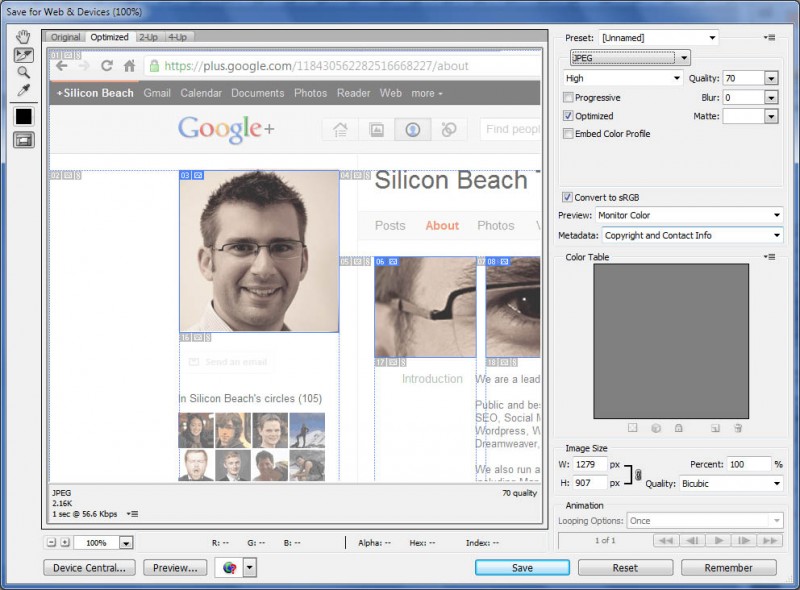
pimp-google-plus-profile-tiled-images-3

Click on the image for full size version

Now a new dialog box will open – navigate to the location that you want to save the images in (best to make a new folder somewhere for them so they don’t get lost). Importantly – make sure you select All User Slices in the Slices drop-down at the bottom.
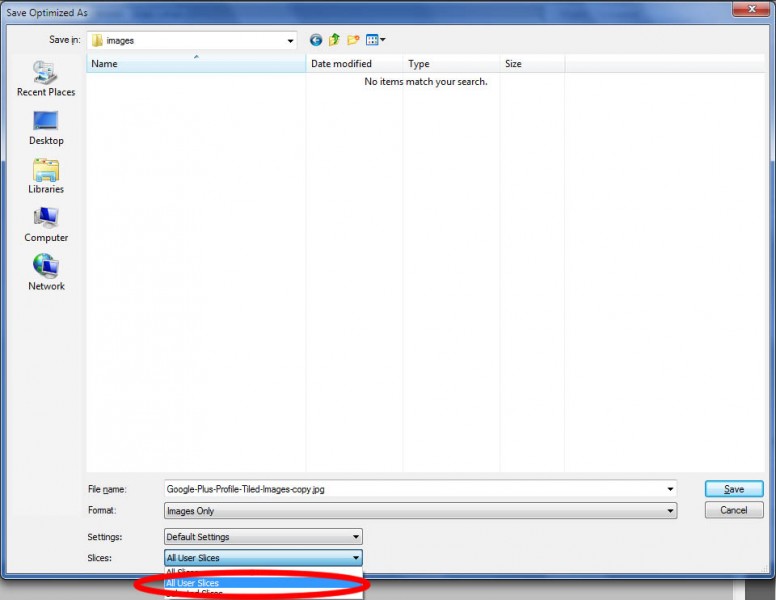
pimp-google-plus-profile-tiled-images-4

Now hit save, and Photoshop will save all of the images ready to be uploaded to your Google+ Profile

Step 4:

OK – Now you’re ready to upload your images to your profile – so:

1. Log in to your Google+ account

2. Navigate to your Profile
pimp-google-plus-profile-tiled-images-5

3. Hit Edit Profile

pimp-google-plus-profile-tiled-images-6

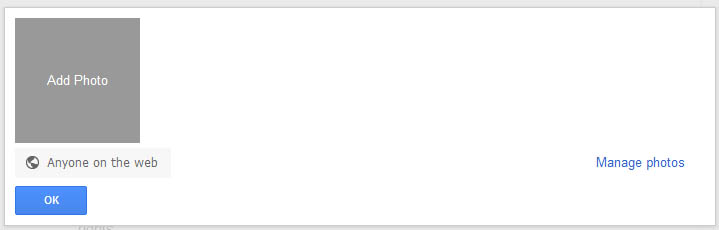
4. Now click on the “Add Some Photos Here” box at the top (if you already have photos there, click on them to edit and delete them) – this should look like this:

pimp-google-plus-profile-tiled-images-7

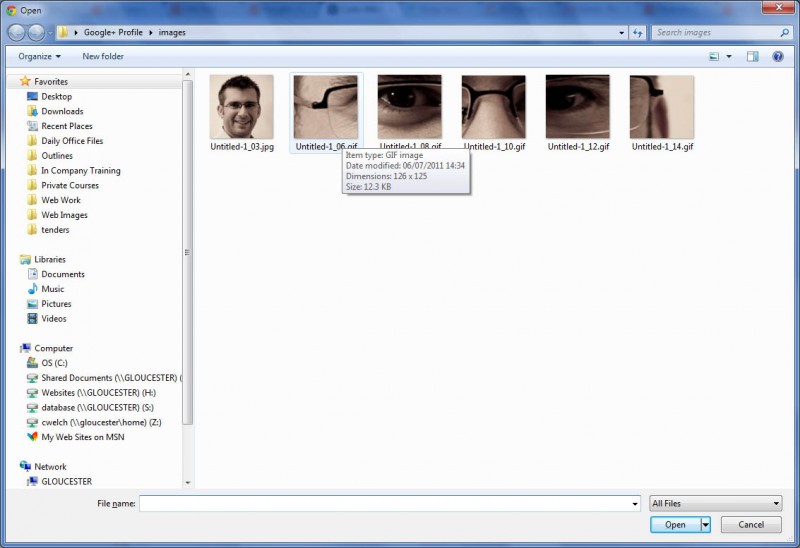
5. Navigate to the folder where you saved your images, and select the image that appears furthest LEFT in the row first:
pimp-google-plus-profile-tiled-images-8

Repeat the process, selecting the images one by one from right to left until you have them all in a row and hit OK when you’re done.

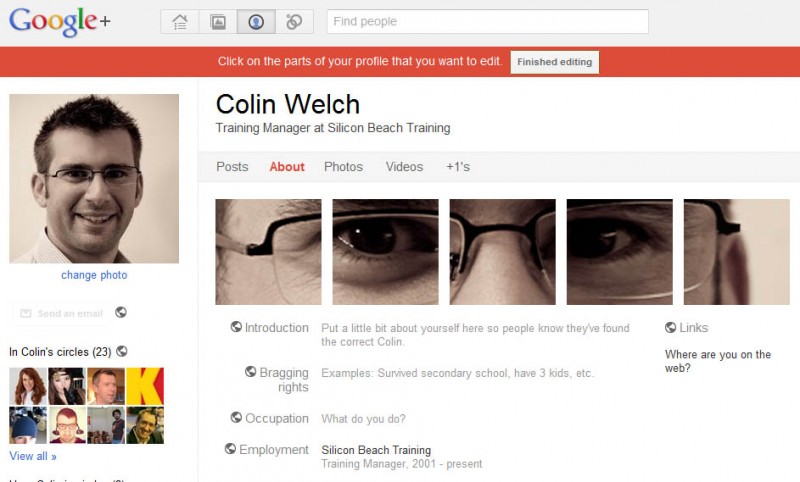
Hey presto! your tiles images looking super-cool on your profile page.

If your design also included a main profile image (top left), click on Change Photo under your profile image and upload this too.

When all is well – hit Finished Editing and your new profile is good to go:
pimp-google-plus-profile-tiled-images-9

Now you can go ahead and tell everyone about your amazing new Google+ Profile design!

Don’t forget – these images appear in the About page of your profile, so if you’re sending people the link, make sure it’s like this: https://plus.google.com/101501043395657937355/about

Happy Pimping! We look forward to seeing your designs!

If you need to know how to use Photoshop to create web graphics all of this is covered in our Photoshop for the Web training course.


Similar posts you may like

  1. How to Pimp Your Google+ Profile Design – Download Template
  2. Competition – Best Personalised Google+ Profile
  3. VOTE for the Most Creative Google+ Profile Design
  4. Google+ tips and tricks
  5. Flickr Integration – Google Buzz and Microsoft Bing Streetside

Tags

, , , , , , , , , , , , ,

Share This Post

Bookmark and Share

23 Responses to “How to Customise Your Google+ Profile Page”

Alinda says:

Thanks for the quick run through and the template much appreciative !!

Customize the photos in your Google+ profile says:

[...] Welch has put out a great guide on how to customize the photos on your about page.  I tried it out on my profile and it worked [...]

Chuck Welch » Blog Archive » Google Plus Tips and Tricks Day Three says:

[...] 3) Tiled Images at the top of your G+ About page are already the rage. (OK, I know a couple of people who’ve done it.) You just need Photoshop and a few minutes: How to Customise Your Google+ Profile Page [...]

Competition – Best Personalised Google+ Profile « Silicon Beach Training Blog says:

[...] week we published our guide  to customising your Google+ profile with a stylish tiled image effect using our Photoshop [...]

DARKFiB3R says:

View > Show > Slices

VOTE NOW for the Most Creative Google+ Profile Design « Silicon Beach Training Blog says:

[...] Voting is now live in our contest to find the most creative Google+ profile design using our How to Pimp Your Google+ Profile – Template and Guide [...]

ralmon says:

Here’s my About, based on your template idea: http://goo.gl/sJdx7

EkaterinaKaterina says:

Thank you so much I did it!

Robert says:

Nice idea, but i can’t seem to download the template.
Any suggestions.
Thanks

Heather Buckley says:

Robert, seems to work for me – are you using Chrome? if so keep you eye open for the download at the bottom of the browser window – maybe you missed it, it’s a little hidden
Heather

Peti says:

Thanks very much for this tute – I pimped my profile too :) http://gplus.to/petimorgan

LinkedIn Groups – 6 Top Tips « Silicon Beach Training Resources says:

[...] The powerhouse that is Google+ has just opened its doors to the public so if you’re new to the platform why not have a look at our Google+ Hints and Tips and try Pimping Your Profile. [...]

Google+ Business Pages Go Public « Silicon Beach Training Blog says:

[...] the page is similar to a personal profile you can use our guide to pimping your Google+ profile on business pages too. Make sure you stand out from the [...]

Lee says:

Nice little template, thanks! I’ve just quickly used it to pimp the Google+ page I set up for the company I work for this morning: http://gplus.to/skipad

pepeshare says:

[...] Add Scrapbook Photos. To add images to create a ‘photostrip’ effect, click on the blue ‘edit profile’ button and then click ‘Add some photos here’. See how to make the photostrip effect here: http://www.siliconbeachtraining.co.uk/blog/how-to-customise-your-google-plusprofile-page/ [...]

The Ultimate GooglePlus Page Tutorial? | The Easy Web Garden says:

[...] Add Scrapbook Photos. To add images to create a ‘photostrip’ effect, click on the blue ‘edit profile’ button and then click ‘Add some photos here’. See how to make the photostrip effect here: http://www.siliconbeachtraining.co.uk/blog/how-to-customise-your-google-plusprofile-page/ [...]

How to customise a Google+ Page « Conversity.be says:

[...] Add Scrapbook Photos. To add images to create a ‘photostrip’ effect, click on the blue ‘edit profile’ button and then click ‘Add some photos here’. See how to make the photostrip effect [...]

Google+ Pages: Ultimate Tutorial by Gabriel Vasile | NewRayCom says:

[...] Add Scrapbook Photos. To add images to create a ‘photo strip’ effect, click on the blue ‘edit profile’ button and then click ‘Add some photos here’. See how to make the photo strip effect here: http://www.siliconbeachtraining.co.uk/blog/how-to-customise-your-google-plusprofile-page/ [...]

11 Must Have Tips for Creating Google+ Pages | Web Media Expert says:

[...] To add images to create a ‘photostrip’ effect, click on the blue ‘edit profile’ button and then click ‘Add some photos here’. (http://www.siliconbeachtraining.co.uk/blog/how-to-customise-your-google-plusprofile-page/) [...]

Tips Tuesday and How to Streamline Your Home Page says:

[...] to create nice pictures for your new G+ biz page? The nice folks at Silicon Beach Training show you How to Customise Your Google Plus Profile Page.  Be aware that it is on a Photoshop [...]

Praveen Gowda I V says:

Thanks, this helped me a lot

Julia Rymut says:

This is a GREAT tutorial. Thank you very much. As an experiment, I copied your idea of “cutting” up my picture. But now that I know how to do this, I’ll think of other ideas as well.

Julia

Google Plus Tips and Tricks Day Three | Chuck Welch, Human says:

[...] 3) Tiled Images at the top of your G+ About page are already the rage. (OK, I know a couple of people who’ve done it.) You just need Photoshop and a few minutes: How to Customise Your Google+ Profile Page [...]

Leave a Reply


Follow Silicon Beach Training

Join uson


Silicon Beach Training


4.9 stars4.9/5 stars
Based on 23 reviews
See independent Google Places, Free Index and Qype reviews

Upcoming courses

See all course dates »

Home | Sitemap | Print |